Canvases — hosted HTML documents
A canvas is a whole interactive HTML document that Fishladder hosts for your team — a styled brief, a dashboard mock, a diagram whose hover states carry the detail. Where a wiki page is text, a canvas is the finished, designed thing itself, and it lives at its own URL so it can be opened full-size or embedded where the work happens.
Canvases are built for AI workflows: an agent writes the document, Fishladder hosts it, and your team reads it in River. Every change keeps the previous version, so an overwrite is never the end of the story.
Creating a canvas
There are three ways to publish a canvas:
- From Claude — with the Fishladder connector added, ask Claude to publish a document or diagram as a canvas. Claude creates it and hands back both URLs — the canvas and its wiki page.
- From the terminal — the CLI pipes any HTML file straight up:
cat brief.html | fish canvas create "Q3 brief" fish canvas update <id> --file brief.html # previous version kept fish canvas show <id> --html > brief.html # export - From the wiki — the + button at the top of the River sidebar has an Upload canvas option: pick an
.htmlfile and the title fills in from the document itself.
A canvas must be self-contained: all styles and scripts inline, images embedded as data URIs. Documents render in a locked-down frame that blocks every outbound request, so external stylesheets, fonts, and CDN scripts will silently fail to load — and third parties never see your content. Scripts themselves run normally, so interactivity works. The size limit is 2MB per document.
The wiki version
Every canvas gets a seat in the wiki: creating one also creates a companion River page in your team's Canvases space, so it shows up in the sidebar like any other page. The page isn't a frame around the canvas — its content is a transcription of the document into ordinary wiki text: headings stay headings, stat tiles become tables, quotes become quotes. That makes the canvas's content searchable, editable, and linkable like everything else in River.
The two versions are one click apart: the Canvas button on the wiki page opens the designed HTML version, and the back arrow on the canvas returns to the wiki page.
Editing the canvas never silently rewrites the wiki page — your notes there are yours. When the canvas has newer changes, the wiki page shows a Refresh from canvas offer (and the canvas page offers Update wiki version right after an edit). Refreshing replaces the page with a fresh transcription, and the page's previous content is kept in its version history, so nothing is ever lost.
Embedding a canvas in a River page
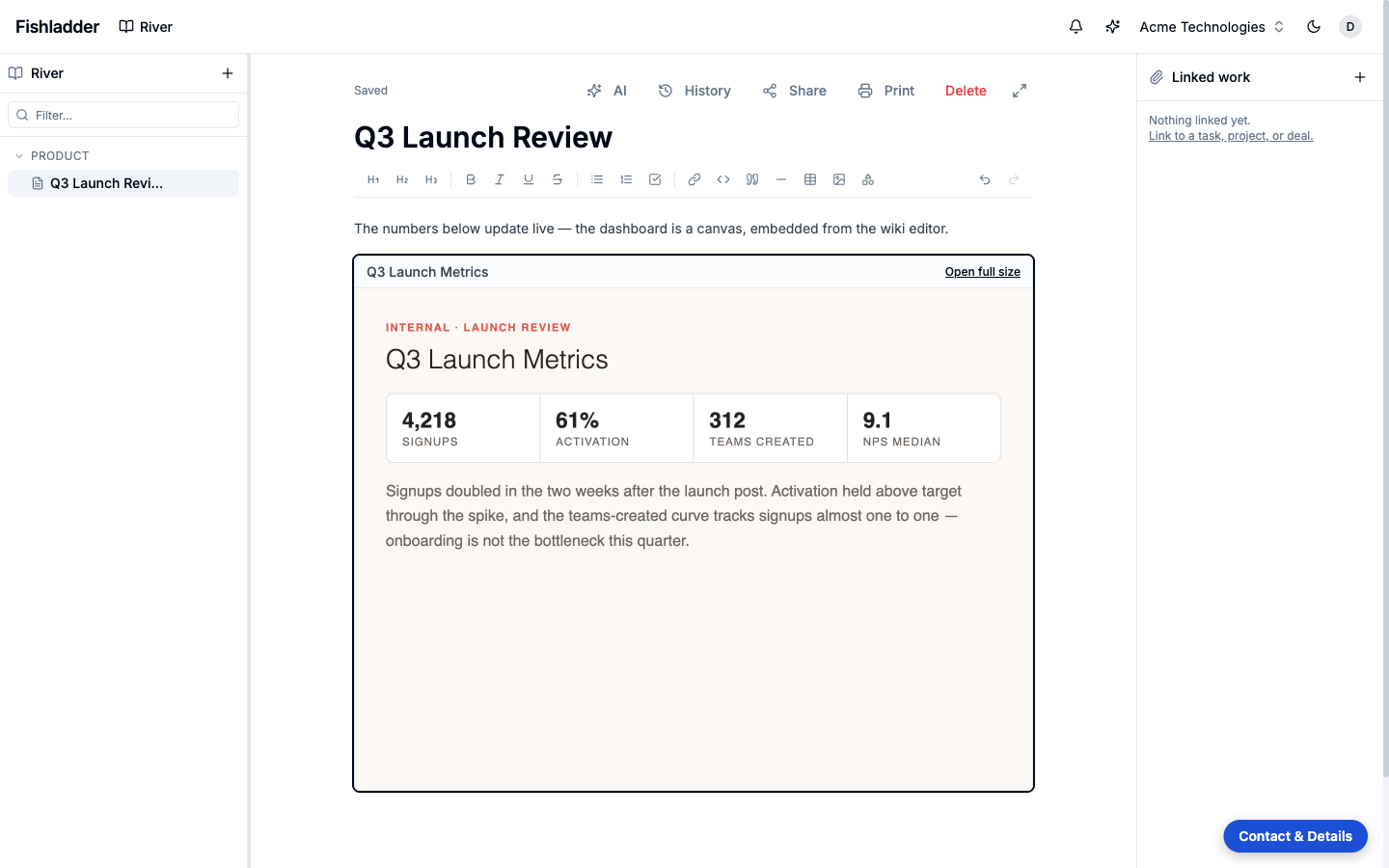
Beyond its own companion page, a canvas can be embedded in any wiki page. Two ways, from the River editor:
- Click the Insert canvas button in the toolbar and pick from your team's canvases.
- Paste a canvas URL into the page — a link of the form
…/canvas/<id>on its own converts into an inline embed.
The embed is a live reference, not a copy: update the canvas once and every page that embeds it shows the new version. “Open full size” on the embed opens the canvas page.
Editing a canvas
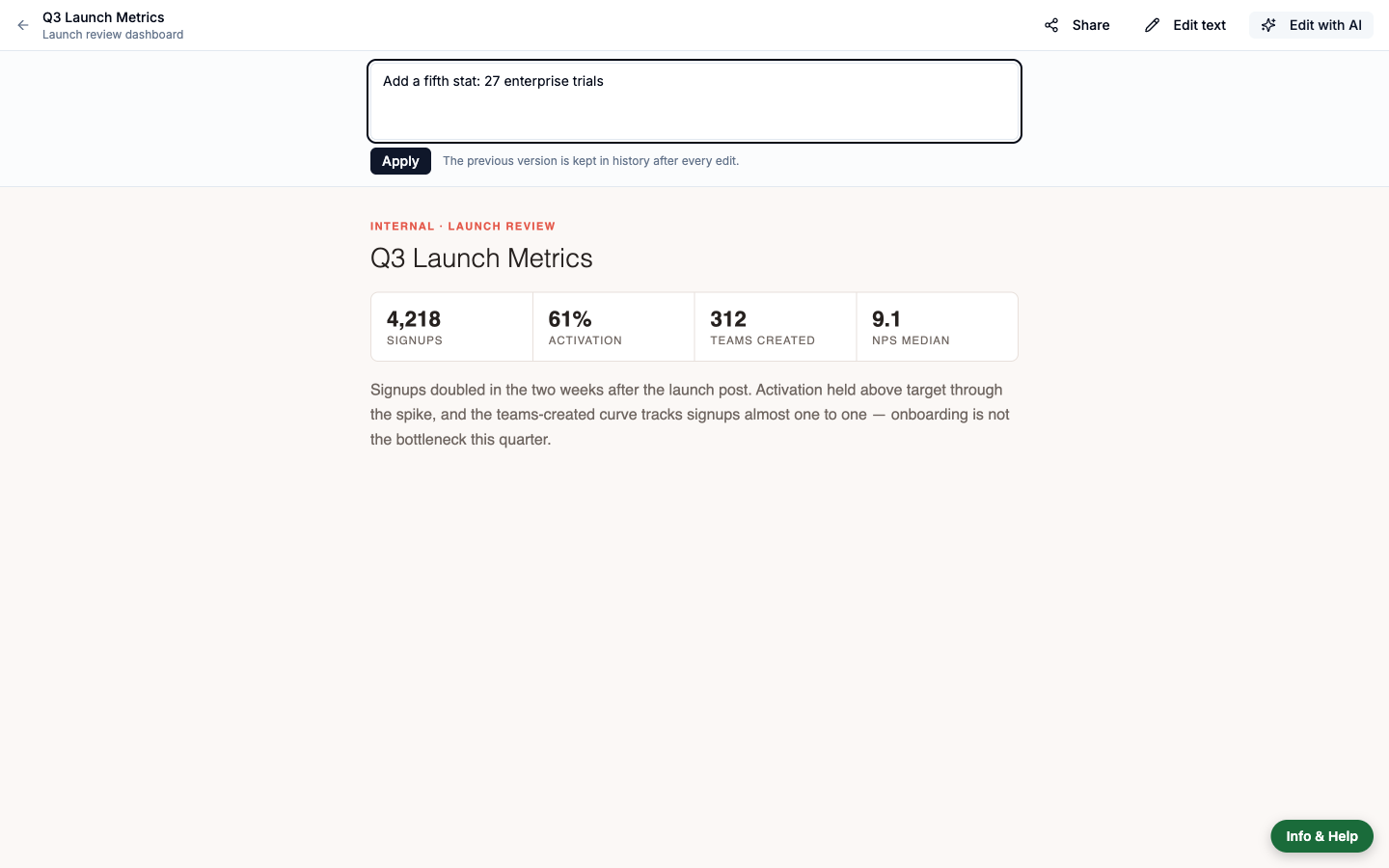
Two ways, both on the canvas page:
- Edit text — click into the document and change its words directly. The formatting, layout, and interactivity stay locked; only text is editable. Save when done.
- Edit with AI — a plain-language instruction (“change the title to Q3 review”, “remove the pricing section”) rewrites the document, keeping everything else intact.
Either way, the outgoing version is snapshotted first and an Undo edit button appears, so a wrong change is one click to reverse. Larger edits are better done at the source: regenerate the document with your agent and push it with fish canvas update or through the connector. The last twenty versions are kept either way — fish canvas versions lists them and fish canvas restore puts one back.
Sharing a canvas
The Share button on the canvas page creates a public link — anyone holding it can view the canvas without signing in. Revoking the link makes it stop working immediately. Creating and revoking public links is admin-only.
Who can do what
Canvases follow the wiki's access rules: anyone who can open River can view them, anyone who can write to River can create and edit them, and viewers are read-only. Public share links are the exception above — minted by admins, viewable by anyone with the link.