Feedback Widget
The feedback widget puts a feedback button on your own website. Visitors submit from the page they are on, and their submissions land straight in your Feedback list — tagged with the page they came from so you know where the bug or idea was raised.
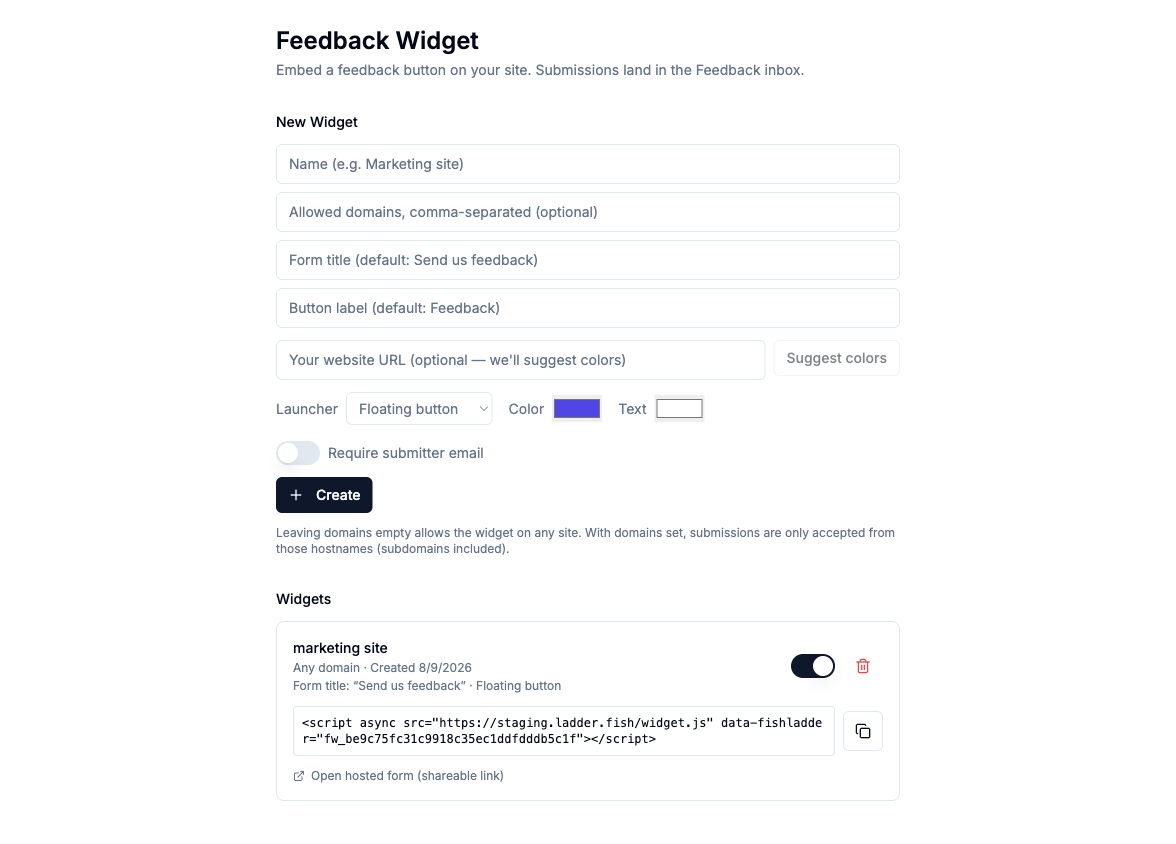
Set widgets up under Settings → Integrations → Feedback Widget (admins only). Everything below can be changed later from the widget's card — the Appearanceeditor for styling, name, and domains, and the Actions editor for the menu.
Embedding the widget
Create a widget, then copy its embed snippet and paste it into your site's HTML, just before the closing </body> tag:
<script async src="https://app.ladder.fish/widget.js" data-fishladder="fw_..."></script>The script loads asynchronously and renders a floating launcher. You control who sees it by choosing which pages include the snippet.
Hosted form link
Every widget also has a hosted form at /f/<token> that works as a plain link — put it in a help center, an email, or anywhere you can't add a script. Use Open hosted form on the widget card to grab the URL.
Your own link or button instead of the launcher
You don't have to use the floating launcher. Turn on Hide launcher in the widget's Appearance editor and open the widget from any element on your page instead — add a data-fishladder-open attribute to it:
<a href="#" data-fishladder-open>Give feedback</a>That works on static hosts like Wix or Squarespace with no JavaScript, and on elements added later by your app. From code, FishladderWidget.open() does the same thing. Either way the widget behaves exactly like a launcher click: one visible action opens directly, several show the menu — and you can jump straight to one action by naming its id, data-fishladder-open="action-id" or FishladderWidget.open('action-id').
Behaviour change (August 2026): FishladderWidget.open() with no arguments used to open the default feedback form directly, even when the widget had several actions. It now shows the action menu in that case, matching what the launcher does. If your integration relied on jumping straight to one form, pass that action's id.
To hide the launcher on just one page (say, an in-app help center with its own feedback link) while keeping it elsewhere, add data-fishladder-hide-launcher to that page's script tag instead of using the widget-wide setting.
Launcher styles
- Floating button — a rounded button pinned to a corner of the page.
- Side tab — a vertical tab attached to the screen edge.
- Uploaded image — your own image as a circular launcher. Upload it on the widget card after creating the widget.
Colors
Four color controls let you match your brand: launcher color, button color, text, and field background. To match your brand quickly, enter your website URL and click Suggest colors — Fishladder reads the public page and proposes the colors it finds. Pick one, or set them by hand.
Annotate a screenshot
On a feedback form, visitors can tap Draw on the area related to your feedback to mark up the page — the form steps aside, they draw over the part they mean, and the annotated view comes back for review before sending. It captures a screenshot of the page with the drawing on top, so the exact thing they saw arrives next to the message (click the image in the feedback entry to open it full size). It works on desktop and mobile, and you can turn it off per form.
Multiple actions (a menu)
A widget can offer more than one thing behind a single launcher. Add actions in the widget's Actions editor and visitors pick from a menu (with one action, the launcher opens it directly — no menu). Action types:
- Feedback — the form with the draw-on-page option.
- Contact — a simpler message form with an optional subject line.
- Help & docs link — opens a URL you set in a new tab.
- AI help assistant — see below.
Each action has its own menu label and form title. Name and email are available on every form; the subject line and require-email are per action.
AI help assistant
An AI assistant action lets visitors ask questions and get answers drawn only from documentation you provide. In the action's corpus box, either paste the doc text directly or paste the URLs of your docs pages — Fishladder fetches those pages and answers from their content. Either way the assistant answers from that material and nothing else, says so when it doesn't know, and never sees your private data. It's rate-limited, with per-widget and account-wide daily caps so a public endpoint can't run up cost.
Show actions by sign-in state
Each action has a visibility setting — everyone, signed-in visitors, or signed-out visitors. Tell the widget whether the visitor is signed in in whichever way suits your site: add data-fishladder-signed-in="true" to the script tag, set window.FishladderWidgetSignedIn = true before the script loads (handy on template hosts like Wix or Squarespace), or call FishladderWidget.identify({ signedIn: true, email, name }), which also prefills the name and email fields. This is presentational only — it decides which actions appear, never access to any private data.
Allowed domains
Leave Allowed domains empty to let the widget run on any site. Add one or more hostnames (for example example.com) to restrict it — a listed domain also covers its subdomains, so example.com admits app.example.com.
Requiring an email
Turn on Require submitter email if you want every submission to include a contact address. When it's off, the email field is optional and visitors can send feedback anonymously.
Where submissions land
Widget submissions go straight into your prioritized Feedback list — no inbox triage step — carrying the page URL, the submitter's email if they gave one, and the annotated screenshot when they drew one. From an entry you can turn the feedback into a task on your board. (Email and meeting-transcript feedback still arrive in the Feedback inbox first.)