Google Drive Integration
Connect Google Drive to get rich file previews when Google Drive links are shared in task comments or descriptions. Instead of a plain URL, you'll see the file name, icon, owner, and thumbnail.
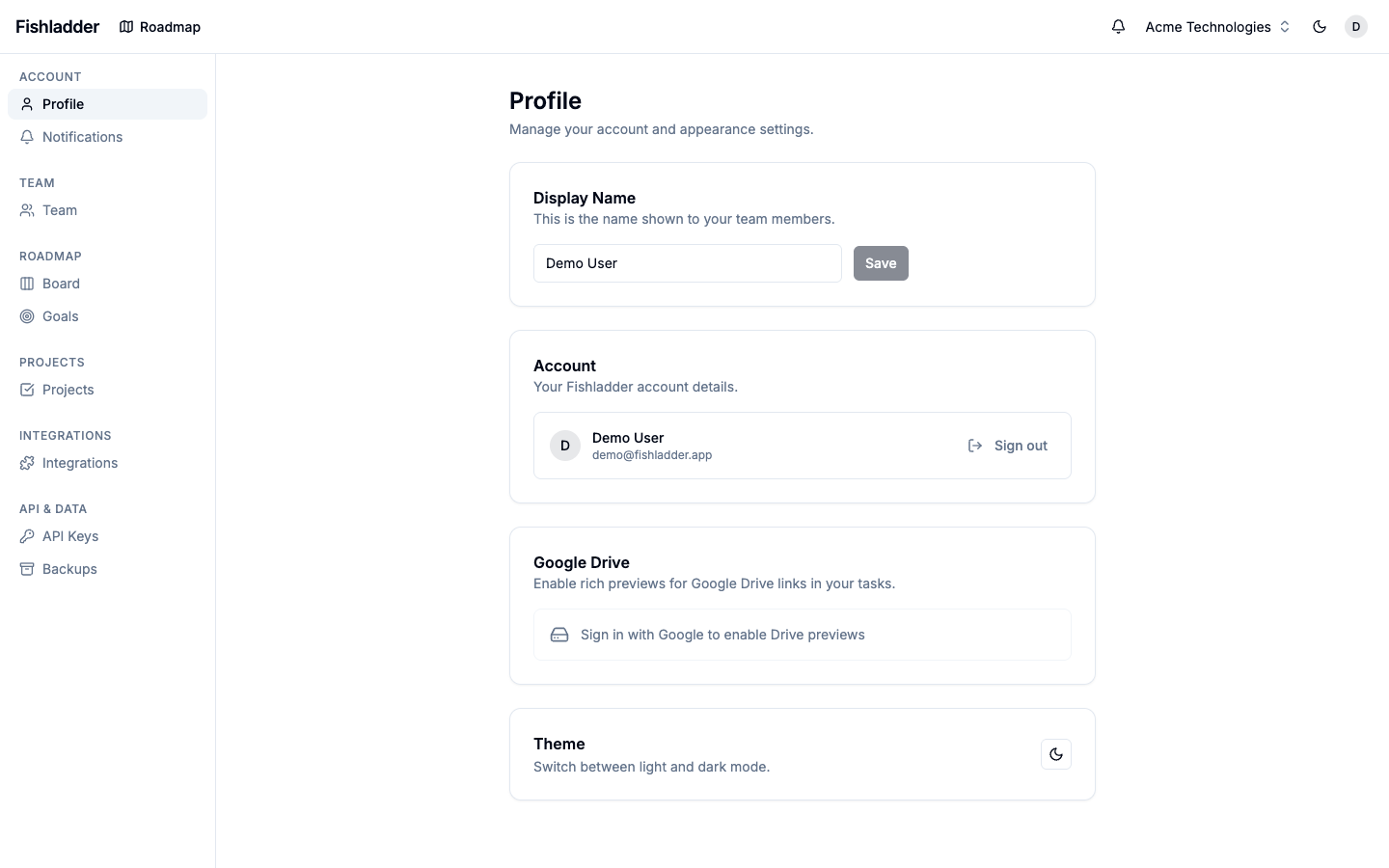
Connecting Google Drive
- Go to Settings → Profile.
- In the Google Drive section, click Connect Google Drive.
- Authorize read-only access in the Google OAuth screen.
- Once connected, you'll see a green checkmark confirming the connection.
You must have signed up with Google (or linked a Google account) to enable this integration.
How It Works
When a Google Drive link is detected in a task, Fishladder fetches the file metadata (name, type, owner, thumbnail) using read-only access. This data is cached for 24 hours to keep things fast.
Supported link formats include:
drive.google.com/file/d/...drive.google.com/folders/...docs.google.com/document/d/...docs.google.com/spreadsheets/d/...docs.google.com/presentation/d/...
Links must be https and on Google's own Drive, Docs, Sheets or Slides addresses; look-alike addresses are refused.
Drive files on tasks
Each task has a Google Drive section for the files that belong to it. Anyone who can open the task's board can see and add them; adding the same file twice keeps one link. The same list is available outside the app:
- CLI:
fish tasks drive list|add|remove <taskId>(v0.18.0 or later; removing is admin-only, like every API delete). - Claude: ask it to attach a Drive file to a task — the connector offers
add_task_drive_linkandlist_task_drive_links. - API:
GET/POST /api/v1/tasks/{id}/drive-linksandDELETE /api/v1/tasks/{id}/drive-links/{linkId}.
File names are shown when the person looking has Google Drive connected; otherwise the link still works, untitled.
Permissions
Fishladder requests read-only access to Google Drive. It cannot create, edit, or delete any files. If a file preview shows an error, it usually means you don't have access to that file in Google Drive.
Disconnecting
To remove the Google Drive connection, go to Settings → Profile and click Disconnect next to Google Drive. File previews will revert to plain links.